Upgrading and repairing PCs without false alerts: how a maintenance window works
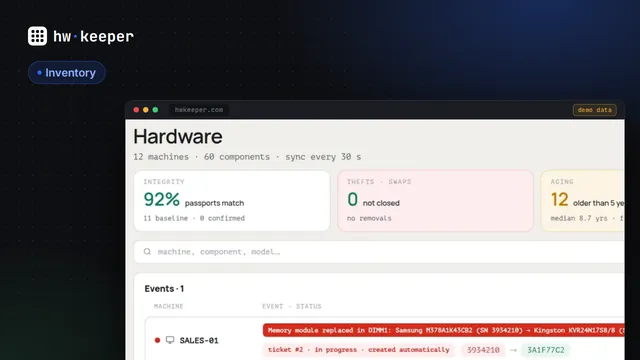
A technician adds a second memory module to an accounting PC and replaces the old hard drive with an SSD. To a system that watches hardware, this looks exactly like theft: a module vanished from a slot, and a disk with a known serial number is gone. Ignore such events and you miss real theft too. Alert on all of them and, after a couple of upgrades, the admin starts dismissing alerts without reading them. The fix is simple: tell the system in advance that work is under way.
Why an upgrade looks like theft
The HWKeeper agent sends a full configuration snapshot when the computer starts and then every 15 minutes. The server compares it with the previous one: memory by slot (serial number, part number, capacity), disks by serial number, graphics cards by PCI ID, monitors by EDID. Every difference goes into the change log. A removed part or a replaced CPU is a critical event: a red alert, an automatic ticket and a notification by your company's rules — email, Telegram or a webhook.
What the system sees during routine work
How to put a PC into maintenance
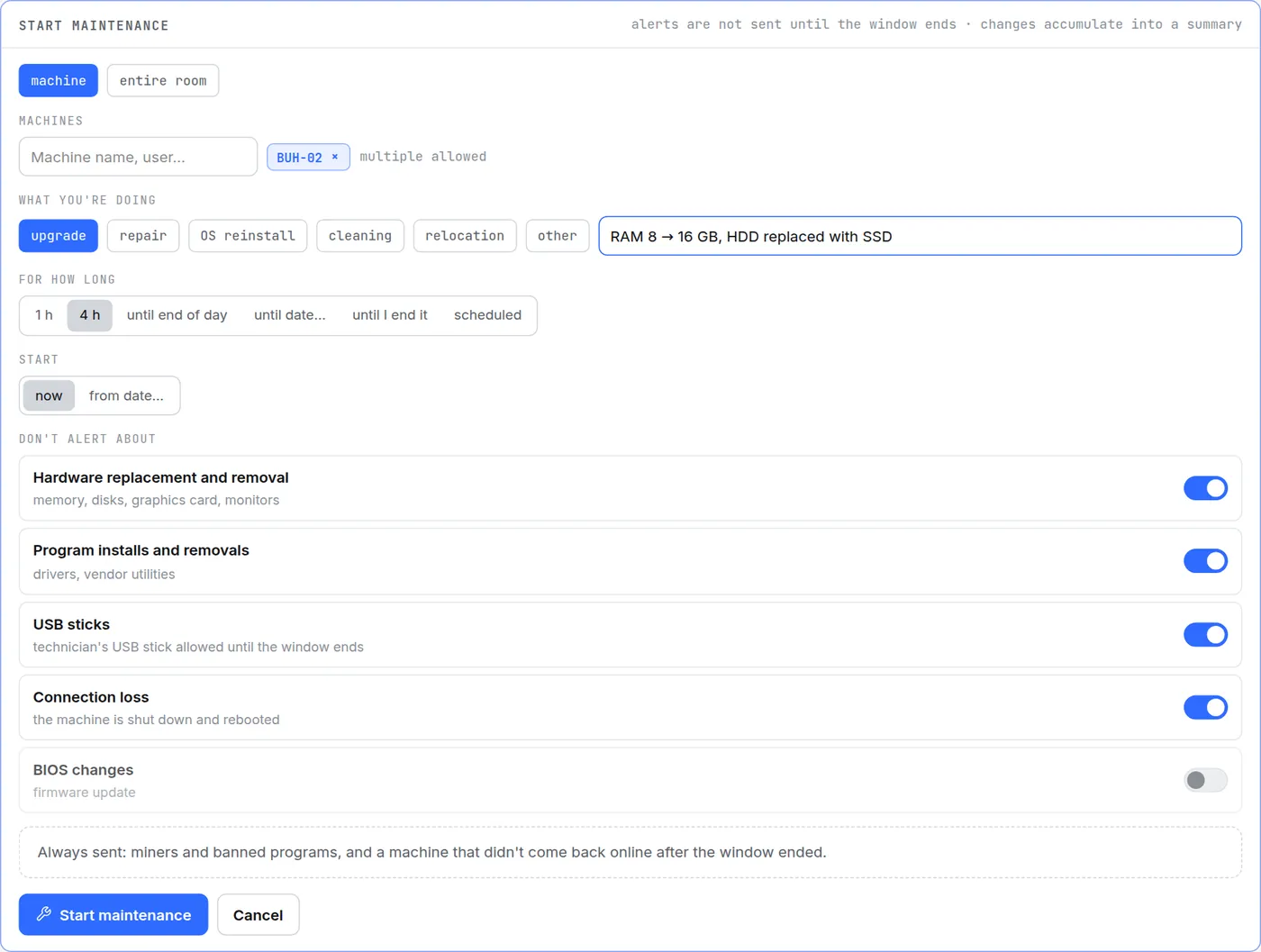
Open the window before the work starts: in Assets → Maintenance with the Start maintenance button, or with the same button on the computer's page. Managers and admins can do this; observers can only view.
- What. One or several machines, or a whole room. A room window covers all of its computers, including ones added later.
- Why. Upgrade, repair, OS reinstall, cleaning, relocation or other, plus a short note such as “RAM 8 → 16 GB”.
- For how long. 1 hour, 4 hours, until the end of the day, until a date, until you end it, or on a schedule — for example every Saturday from 10:00 to 14:00 in the computer's local time.
- What not to alert about. Hardware replacement and removal, program installs and removals, USB sticks and connection loss are on by default. BIOS changes are off: a firmware update is worth seeing.
What happens during the work
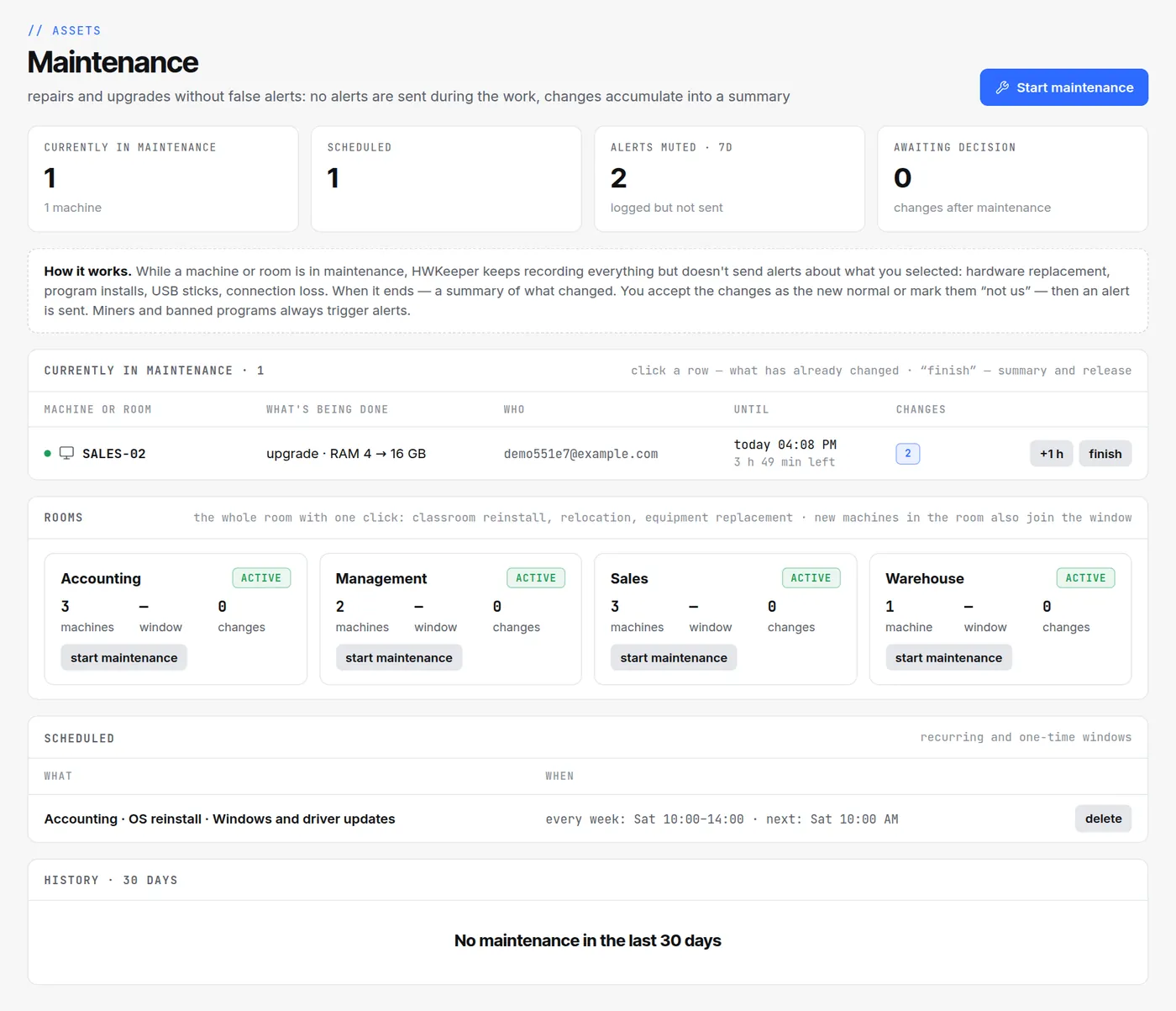
- No change is lost. Each one is written to the change log as usual. The new configuration becomes current right away: after the upgrade the computer's page shows 16 GB.
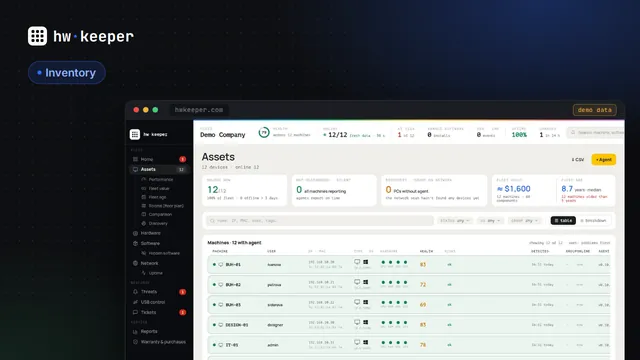
- Alerts stay quiet. For the selected categories there are no alerts, notifications or automatic tickets. These changes don't lower the machine's health score, don't trigger the “theft” mark on the dashboard and don't appear under “fresh threats” in the weekly digest. On the dashboard the machine is shown in blue — “maintenance”.
- The technician's USB stick works. If USB storage auto-blocking is on, it is lifted for the window and comes back on its own afterwards.
- Always sent: miners and banned programs, and a machine that doesn't come back online after the window.
- A 15-minute margin. A change made in the last minutes of the window reaches the server only with the next snapshot. So for 15 minutes after the window ends, such snapshots still count as part of it.
The summary: accept or “not us”
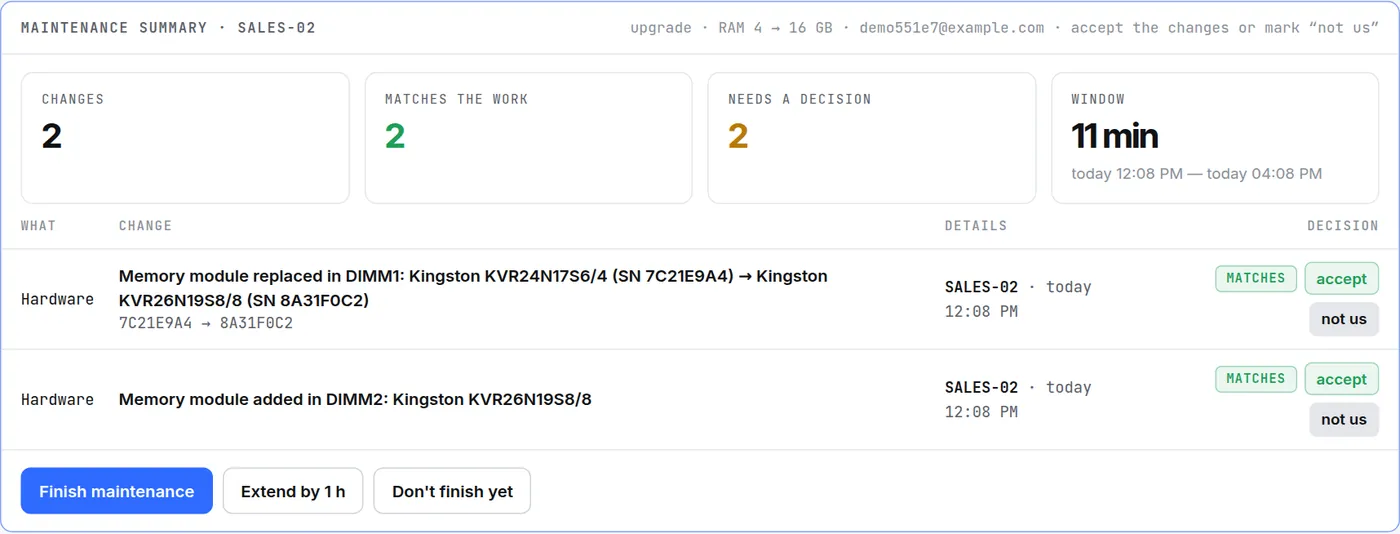
When the window's time is up, it doesn't close by itself: the list shows “window expired — finish and accept the summary”, and muting no longer applies. The summary lists every change made during the work and how many of them match the declared work. You can decide on each one separately.
Three decisions in the summary
Finish maintenance closes the window. Changes without a decision are accepted as the norm.
How a window differs from “Mute”
A few tips
- Open the window before you take the case cover off: anything that arrived earlier has already been sent.
- Don't finish the window until the changes show up in the summary. After an upgrade the computer boots and the agent sends a snapshot right away — usually a minute or two.
- For regular work, such as Saturday updates, use a schedule rather than one-off windows.
- Turn on “BIOS changes” only when you are updating firmware.
- Moving or reinstalling a whole classroom — one window for the room, not one per machine.
Try it on your fleet
HWKeeper is free for up to 50 computers. The agent keeps the computer inventory and the hardware change log up to date, and a maintenance window separates planned work from real problems.
Start for freeWritten by the HWKeeper team with the help of AI language tools; a person checked the facts. Screenshots: real dashboard, demo data.
Read next