SMART in practice: what Windows, Linux and macOS actually tell you about disks
SMART is the self-diagnostics built into every hard drive and SSD. The disk counts its own errors, power-on hours, temperature and wear, and can warn that it is about to fail. How much of that an admin can actually see depends on the operating system, the driver and how the disk is connected. Here is what Windows, Linux and macOS really report. Everything below is based on how the HWKeeper agent collects SMART.
What in SMART matters for an office
- The verdict. The disk has decided it is about to fail (predict failure). The most important signal, and the latest one.
- Reallocated sectors (attribute 5). The disk has already replaced damaged areas with spare ones. If the count keeps growing, the disk is going.
- Pending sectors (attribute 197). Areas that could not be read and are waiting to be replaced.
- Uncorrectable read errors: attribute 187 on SATA, media errors on NVMe.
- SSD wear: how much of the rated write endurance is already used.
- Temperature and power-on hours.
Windows: a verdict and reliability counters
Windows has two built-in sources, and both need administrator rights (the agent runs as a service under the system account).
- The verdict — the WMI class
MSStorageDriver_FailurePredictStatusin theroot\wminamespace: a failure-prediction flag and a reason code. - Counters — the Storage API cmdlet
Get-StorageReliabilityCounter: wear, temperature, power-on hours, total and uncorrected read errors.
To check a single computer, run PowerShell as administrator:
Get-PhysicalDisk | Get-StorageReliabilityCounter | Select-Object DeviceId, Wear, Temperature, PowerOnHours, ReadErrorsUncorrected
Media type and bus are more reliable from Get-PhysicalDisk: the older Win32_DiskDrive often calls an NVMe drive “SCSI” and its type “Fixed hard disk media”.
What's missing. The Storage API does not report reallocated or pending sectors. For a disk behind a USB adapter or a RAID controller the verdict class is often unavailable and the counters come back empty. An empty value means “no data”, not zero, and the agent passes it on as such.
Linux: smartctl
On Linux everything is visible through smartctl from the smartmontools package; it needs root. The agent runs smartctl --json -A -H for each disk and takes:
- on SATA — attributes 5, 197 and 187, power-on hours (9) and temperature (194 or 190);
- on NVMe — the health log: Percentage Used (wear), Media Errors, Critical Warning, temperature and hours.
Two subtleties we tripped over ourselves:
- The exit code. smartctl returns a non-zero code even when its output is complete and useful: the bits of the code report problems it found. Treat such a run as an error and you lose SMART precisely on the sick disks. Since version 0.11 the agent parses the output regardless.
- SATA SSD wear. Attribute numbers 177, 231 and 233 mean different things for different vendors: for some, 233 is wear, for others it is the amount of data written, and 231 is sometimes remaining life and sometimes temperature. So we read wear only by attribute name (Wear_Leveling_Count, Media_Wearout_Indicator, SSD_Life_Left and similar), never by number.
Without smartmontools installed there is no SMART on Linux at all.
macOS: the verdict only
Out of the box, macOS tells you one word about a disk: Verified (fine) or Failing. You see it in diskutil info disk0 (the SMART Status line) and in system_profiler SPStorageDataType. External disks behind a USB bridge usually show “Not Supported”. The built-in tools give no wear, temperature or hours; for those you need smartmontools from Homebrew. The HWKeeper agent for macOS reports the verdict starting with version 0.11.2.
What the built-in tools show about a disk
Which thresholds to use
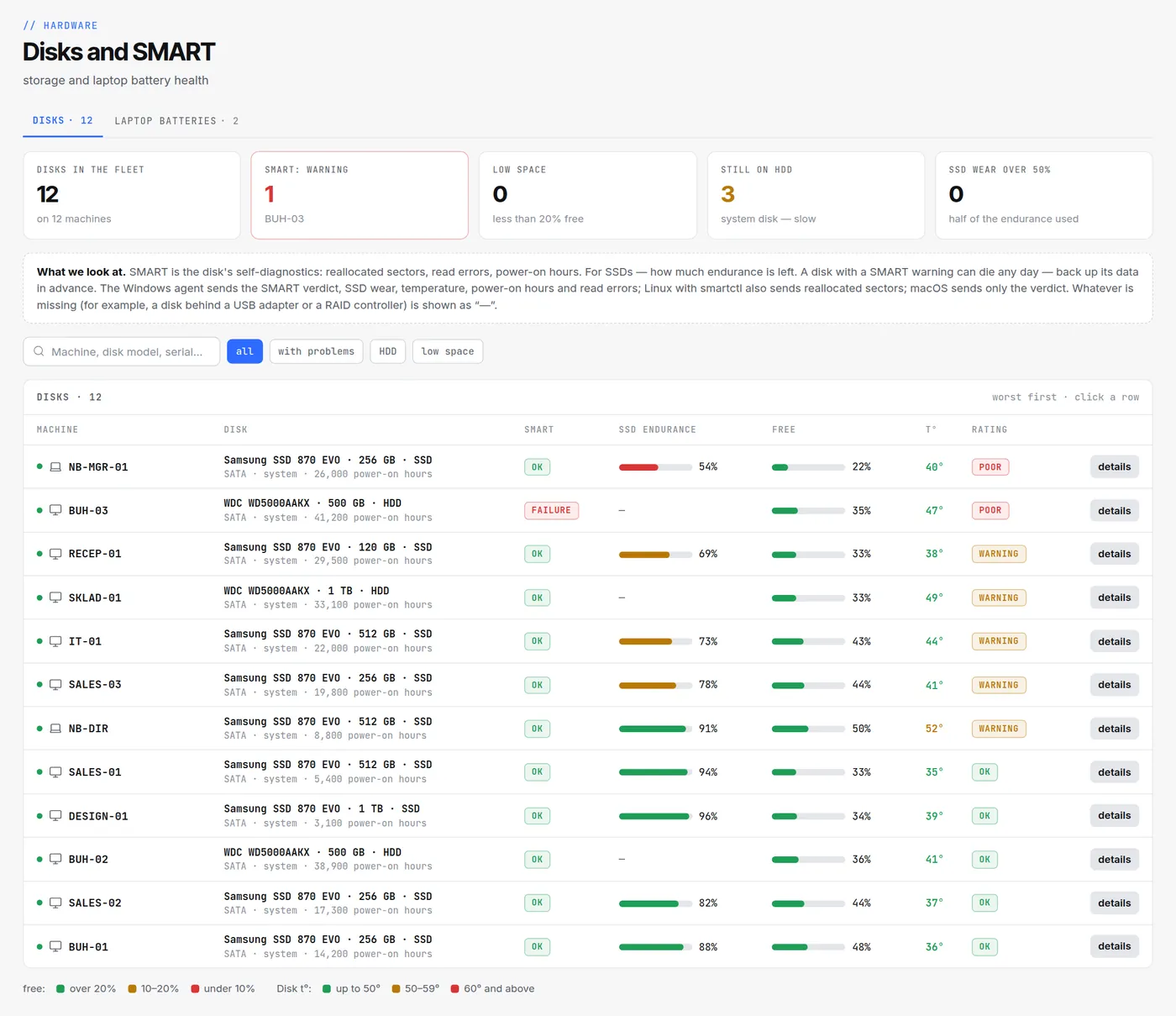
These are the thresholds HWKeeper uses on the Disks and SMART page. They are easy to reuse in any other system.
When a disk needs attention
Reports add two more selections: Disk power-on hours — disks over 30,000 hours, and Disk temperature — hotter than 55 °C.
What to do with the results
- A “failure” verdict or growing reallocated sectors — back up the data today, then replace the disk, preferably with an SSD.
- Less than 60% SSD endurance left — plan a replacement this year and back up in advance.
- 50 °C and above — check cooling and dust in the case. On laptops, check the vents and the surface the laptop sits on.
- Occasional read errors — keep watching: if the number grows, replace the disk.
- “No data” — check the agent version, whether smartmontools is installed (Linux) and whether the disk sits behind a USB adapter or RAID.
Most importantly, SMART doesn't promise that a disk without warnings will live long. A noticeable share of disks fail with no visible warning signs. You always need backups; SMART only hints where you'll need them sooner.
Check the disks in your office
HWKeeper is free for up to 50 computers. The agent for Windows, Linux and macOS collects SMART on its own, and the Disks and SMART page puts the worst disks on top — together with a full computer inventory.
Start for freeWritten by the HWKeeper team with the help of AI language tools; a person checked the facts. Screenshots: real dashboard, demo data.
Read next