Windows 11 compatibility check for every computer in your office
Windows 10 support ended on October 14, 2025: there are no more free security updates, and for organizations Microsoft offers only the paid ESU program. For every office computer you have to decide whether to upgrade it, reconfigure it or replace it. Start with a Windows 11 compatibility check.
Windows 11 requirements
Three things get in the way most often: TPM 2.0, Secure Boot and the processor. The processor must be 64-bit and on Microsoft's list: as a rule, that means Intel Core 8th generation or newer, or AMD Ryzen 2000 or newer. Memory and storage are usually fine, although 4 GB is the bare minimum and hard to work with.
Windows 11 minimum requirements
How to check a single computer
- Microsoft's PC Health Check app gives a "meets / doesn't meet the requirements" answer.
tpm.mscshows the TPM version. The PowerShell commandGet-Tpm, run as administrator, gives the same information.msinfo32: the "BIOS Mode" line (it must say UEFI) and "Secure Boot State".- PowerShell
Confirm-SecureBootUEFIreturns True if Secure Boot is on.
That's enough for five machines. For fifty, it's a day of walking from room to room and filling in a spreadsheet.
Checking the whole office at once
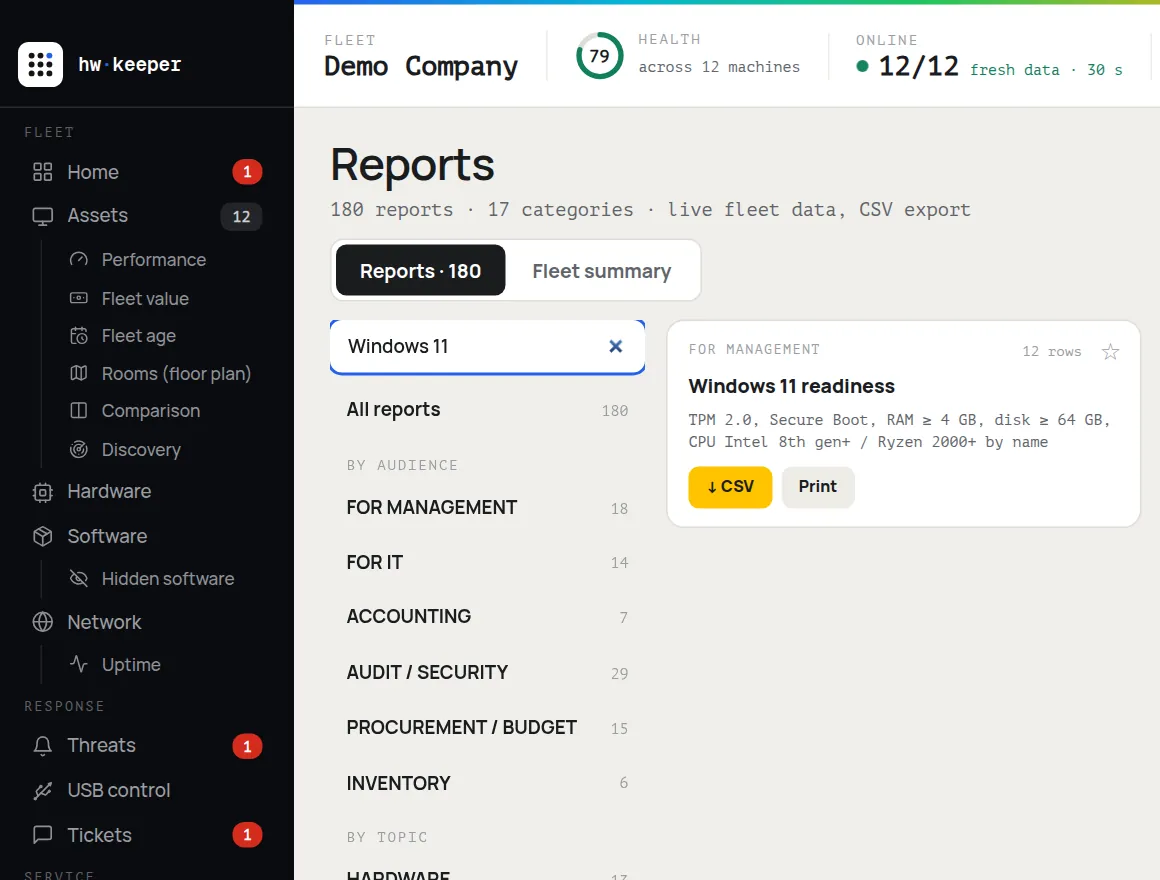
If the computers already run an inventory agent, the TPM, Secure Boot, processor, memory and drive data has already been collected. In HWKeeper, open "Reports" and find "Windows 11 readiness". The report checks every PC against the requirements and shows exactly what's blocking it.
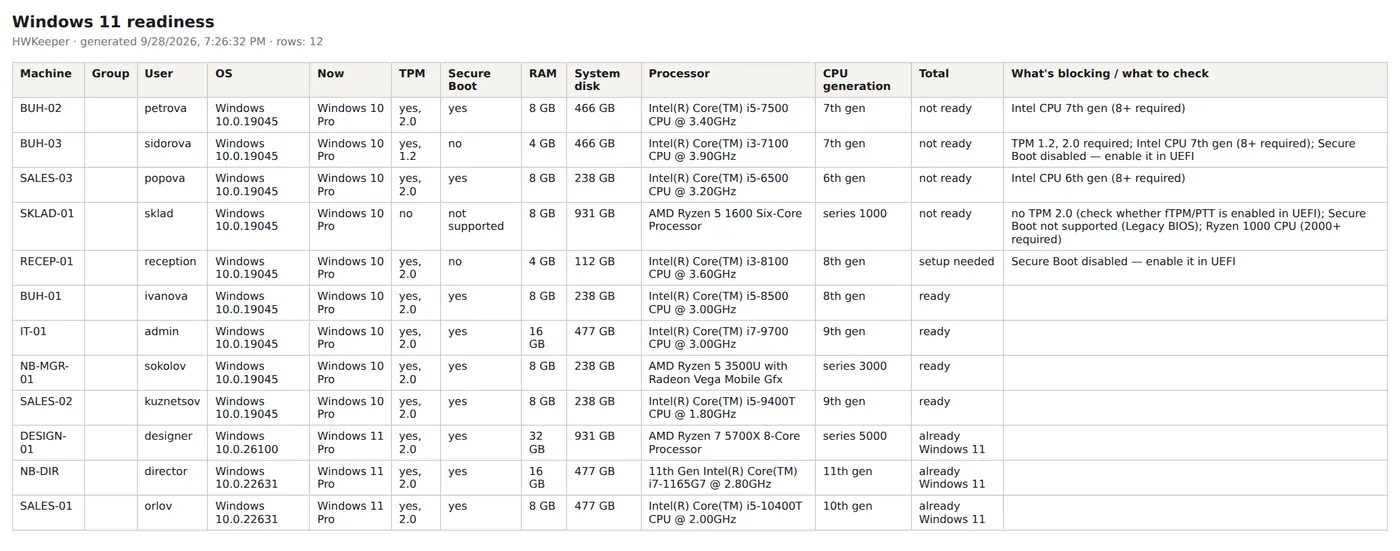
Check results · demo office with 12 PCs
What to do with the results
- Ready machines: upgrade them in batches, starting with the ones that have a recent backup.
- Secure Boot and TPM that are turned off (on AMD processors TPM is called fTPM, on Intel it's PTT) can be enabled in the UEFI settings. If the computer boots in Legacy mode, first convert the disk to GPT with the
mbr2gpttool, after making a backup. - An old processor can't be fixed with settings. These machines make a ready-made list for the purchasing plan.
Workarounds for installing Windows 11 on unsupported hardware exist, but Microsoft doesn't guarantee updates for such computers. For work machines, that's a poor compromise.
Check your office
HWKeeper is free for up to 50 computers. Install the agent on your office machines, and the Windows 11 readiness report builds itself, along with a full computer inventory.
Start for free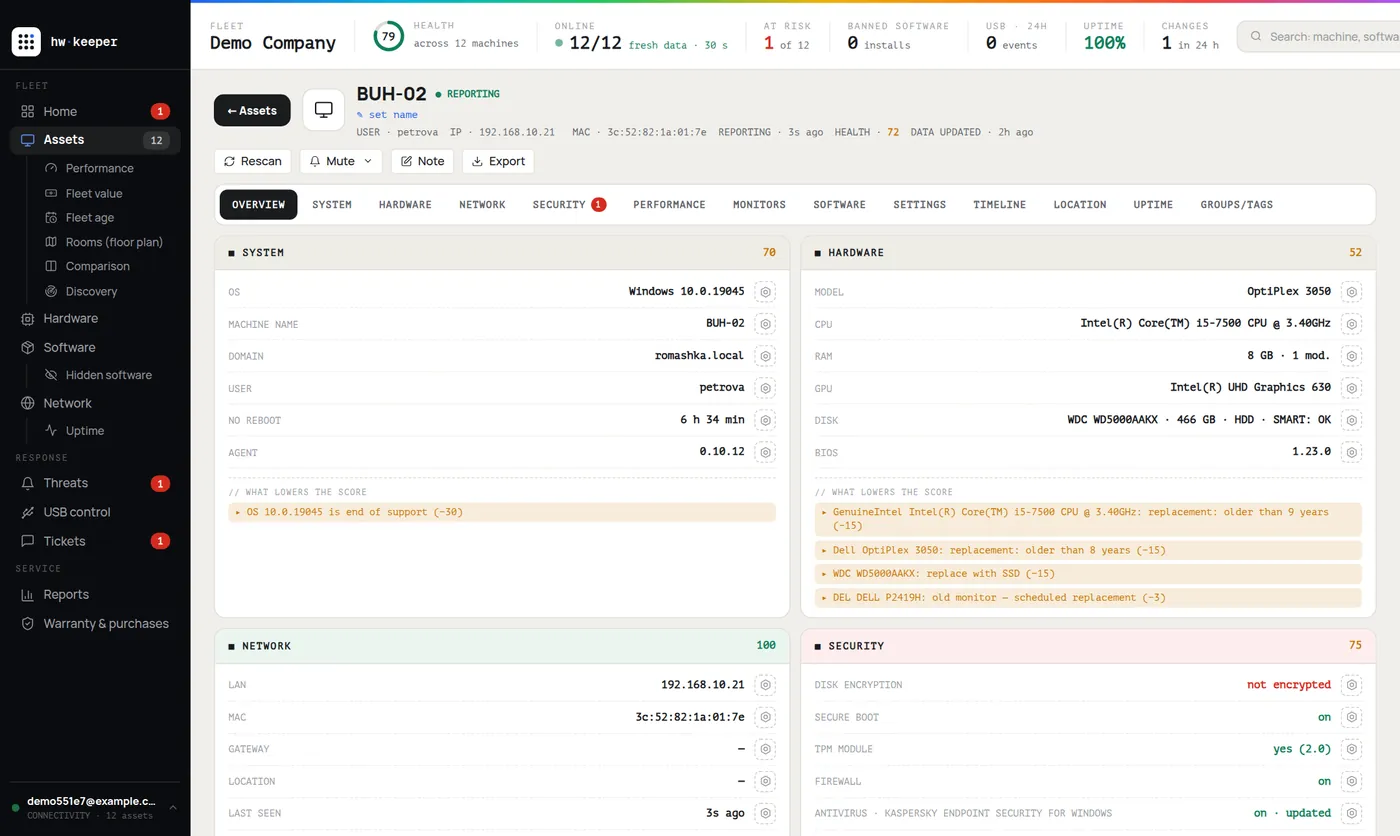
Written by the HWKeeper team with the help of AI language tools; a person checked the facts. Screenshots: real dashboard, demo data.
Read next