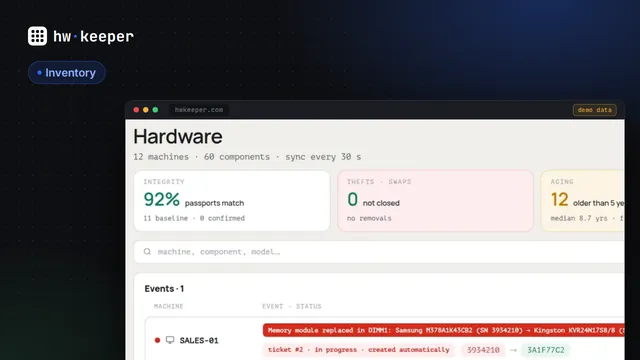
Computer inventory for your organization: a step-by-step guide for offices with 10–300 PCs
With ten computers, you know them all by heart. As the office grows, simple questions go unanswered: how many machines still run Windows 10, where is there an old HDD, who has 4 GB of RAM, which laptop is still assigned to someone who left. A computer inventory answers these in minutes, if you do it right and keep the data from going stale.
Why you need it
- Budget. You see what to replace this year and what will last a while longer.
- Security. Machines without updates, encryption or antivirus show up right away.
- Loss prevention. You notice when equipment goes missing or its parts are swapped.
- Upgrades. You know which PCs can't handle the new version of Windows.
What to record for each computer
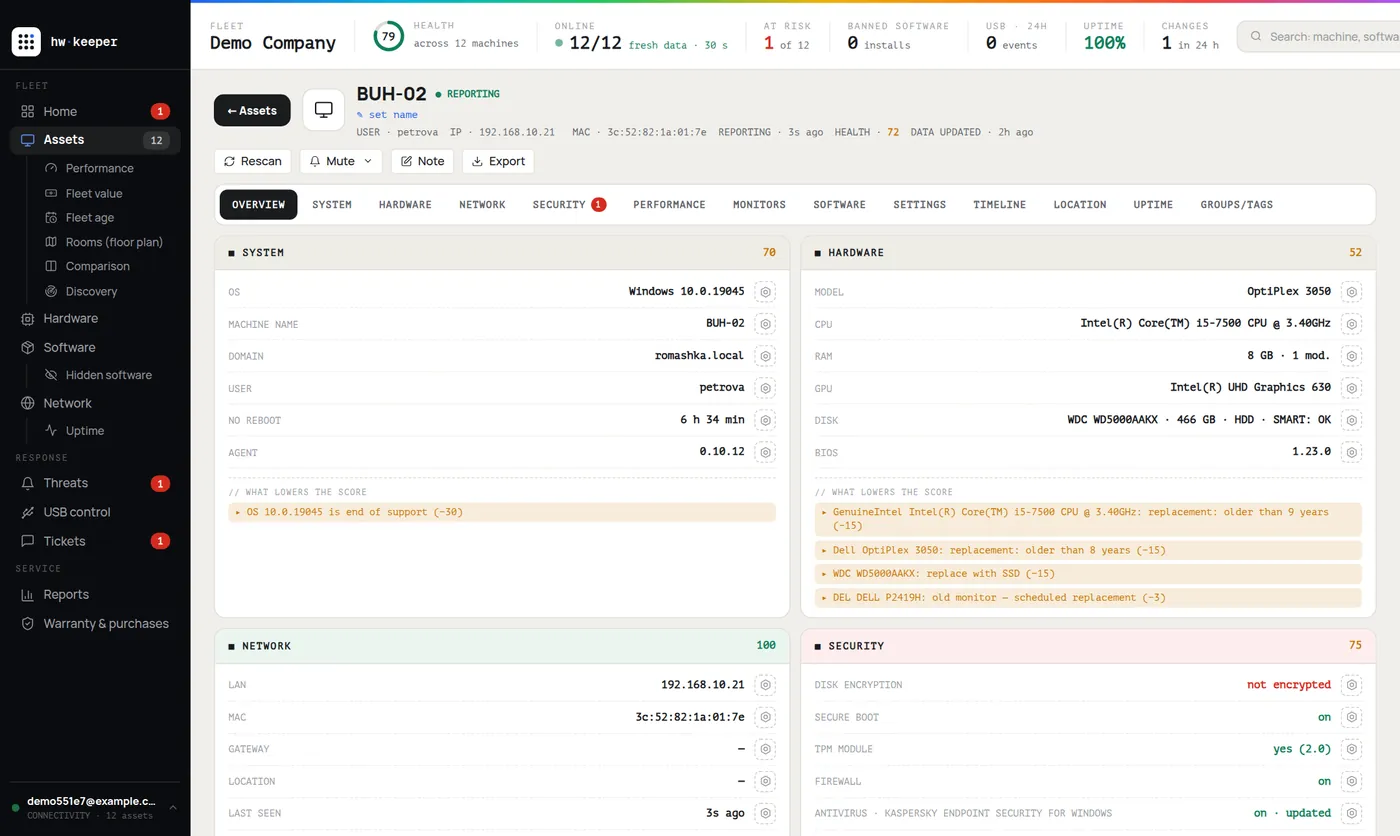
At a minimum: name and asset tag, room and employee, model, processor, amount of RAM, drives (type and size), OS version, serial number, purchase date and warranty. Accounting tracks fixed assets by its own rules, but IT needs the configuration: a line that just says "desktop PC" won't tell you whether it's time to replace it.
Three ways to do it
An Excel spreadsheet. Free, but you visit every machine by hand, and the spreadsheet is out of date the day you fill it in. Fine if you have fewer than twenty computers.
A network scan. Finds everything that's switched on, but without credentials it sees little. It misses machines that are turned off and laptops outside the office.
An agent on every PC. A small service collects the configuration itself and sends changes. You set it up once, and the data stays current, including from laptops outside the office.
Three ways to inventory computers
A one-week plan
For an office with up to 300 computers, one working week is enough.
Computer inventory in one week
How to keep the inventory up to date
A once-a-year inventory captures a single day. Someone moves RAM, swaps a drive, a laptop goes to a branch office, and a month later the spreadsheet is already wrong. Automatic collection keeps the data fresh: the configuration updates itself, and every change is recorded in the history.
Common mistakes
- Writing "desktop PC" without a model or serial number.
- Forgetting laptops that are rarely in the office.
- Not recording who the equipment is assigned to.
- Doing it once and never updating it.
How to do it in HWKeeper
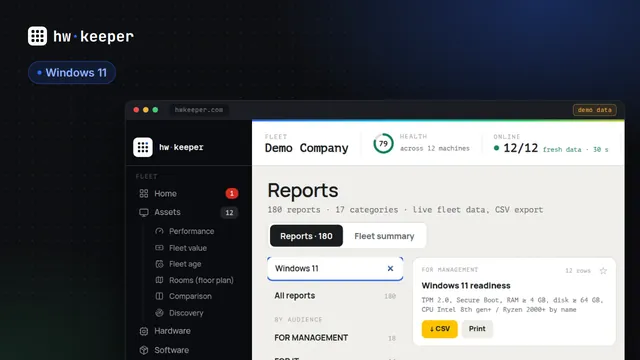
HWKeeper collects inventory with an agent for Windows, macOS, Linux and Android. After installation, the computer shows up in the list within seconds: processor, memory, drives, OS, user. For reporting there are 180 ready-made reports with CSV export. The service is free for up to 50 computers.
Start for free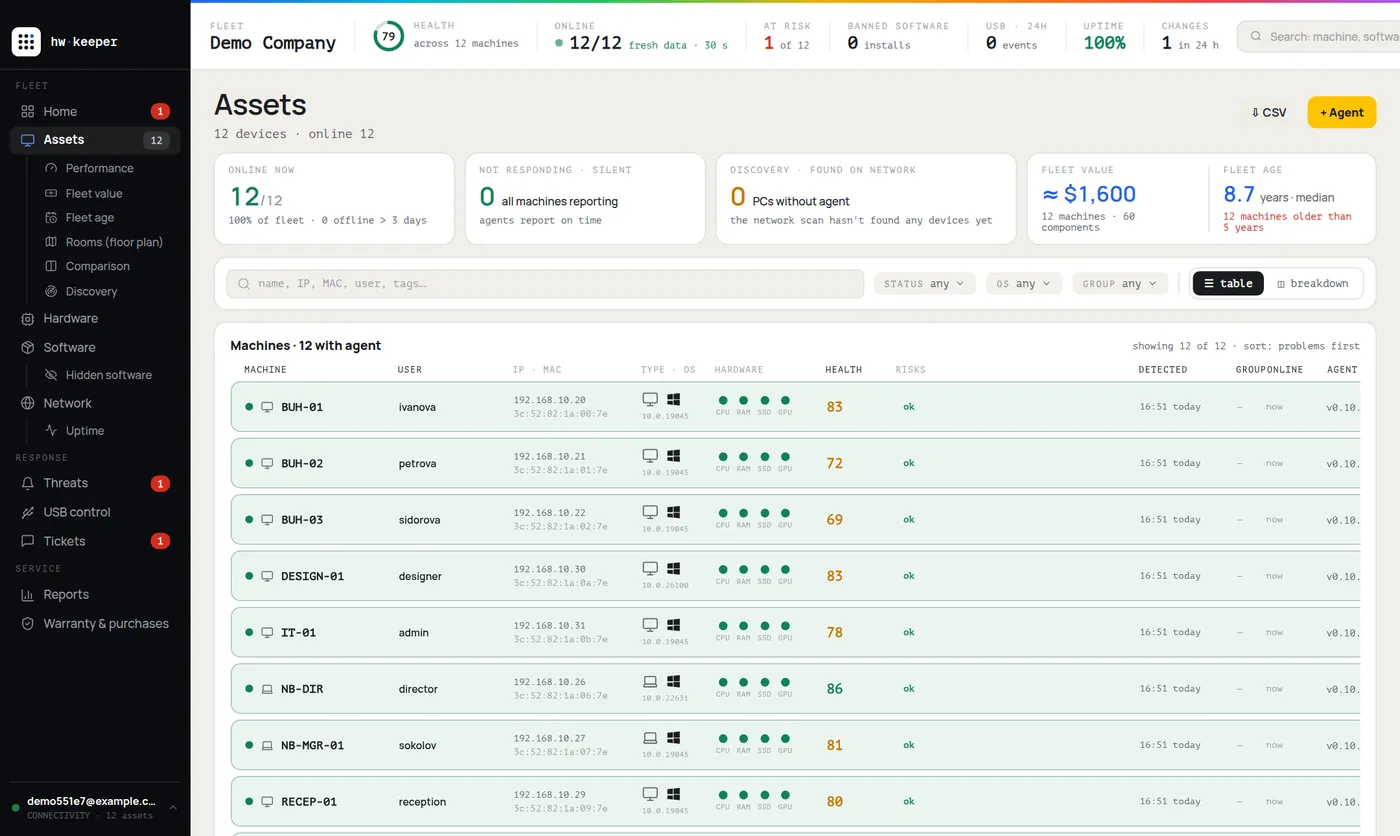
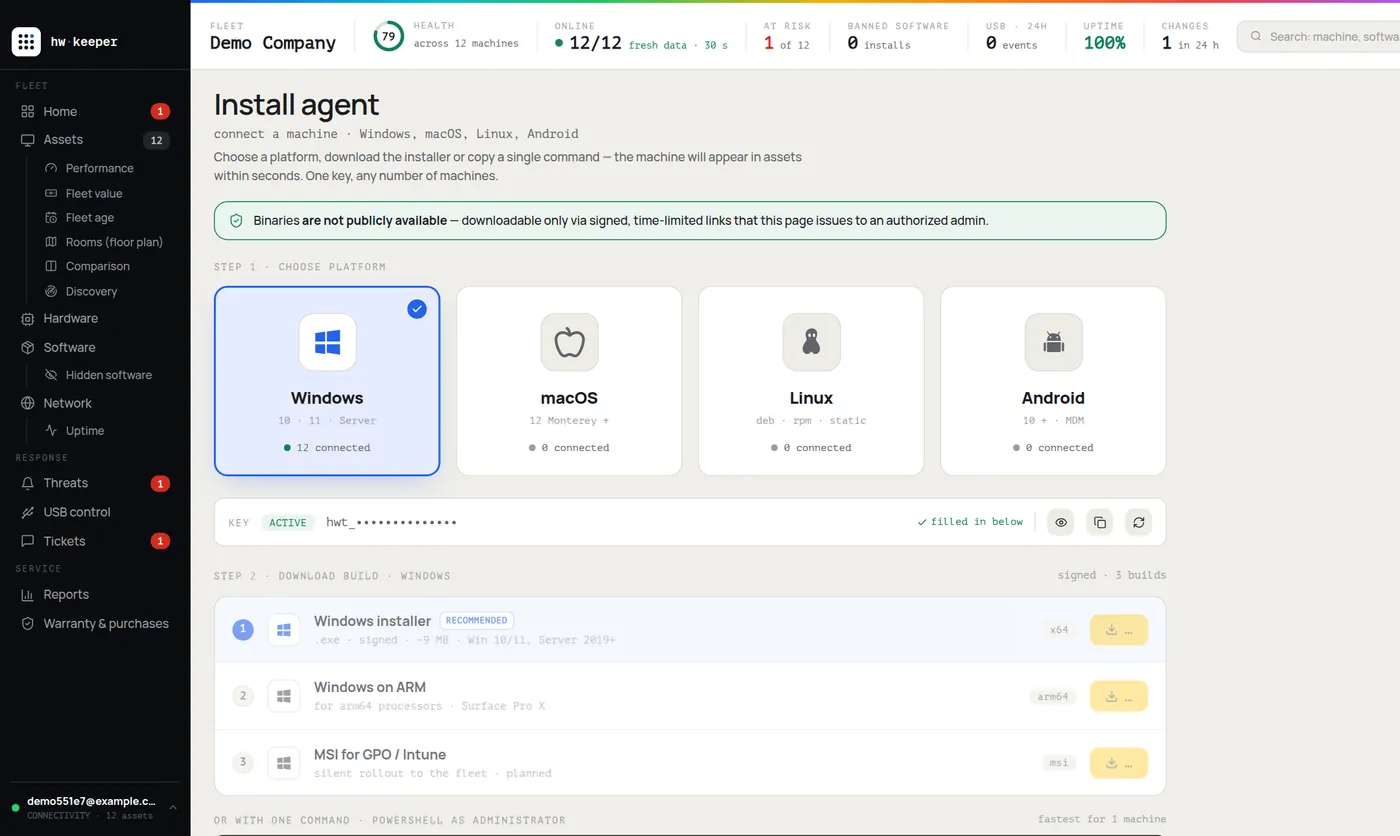

Written by the HWKeeper team with the help of AI language tools; a person checked the facts. Screenshots: real dashboard, demo data.
Read next